


In today’s world, smart virtual assistants are changing how businesses talk to customers. A chatbot can boost website sales, keep visitors happy 24/7, and handle simple tasks cheaply. First, decide what your assistant will do best, like answering common questions or booking appointments.
Google Dialogflow is a top natural language understanding platform from Google. It’s made for creating easy-to-use chat interfaces. This tool uses advanced Natural Language Processing (NLP) to make complex conversations simple.
This guide will make the whole process clear. We’ll take you from the basics of conversational AI to setting up a working chatbot. You’ll see how to use Dialogflow to make an assistant that feels real and helps your business grow.
Understanding Chatbots and Google Dialogflow
Conversational AI has become a key part of business, thanks to platforms like Google Dialogflow. Knowing the basics is important before you start. It helps you understand how these technologies work together to create smart, automated talks.
What is a Chatbot?
A chatbot is a digital program that talks to humans. It’s like a virtual assistant that’s always ready to help. It answers questions, gives information, or does simple tasks.
Chatbots make technology easier to use. You can just ask for what you need in your own words. This makes things more accessible and friendly.
The best chatbots use conversational AI to get what you mean. They’re not just simple Q&A tools. They can have long conversations, remember what you said before, and give you answers that feel personal.
What is Google Dialogflow?
Google Dialogflow is what makes many chatbots work. It’s a big framework for making chatbots better. At its heart, Dialogflow is a natural language processing (NLP) tool.
Dialogflow figures out what you mean and responds in a smart way. It uses machine learning to match your words to the right action. This means it can understand many ways of saying the same thing.
One of the best things about Dialogflow is how easy it is to use. It works well with big names like Facebook Messenger, Slack, and Google Assistant. This means you can make your chatbot work on many platforms with just a little effort.
Key Components of the Dialogflow Platform
Dialogflow uses three main parts to make conversations work. Knowing these parts helps you understand the whole system better.
- Agent: This is your chatbot’s brain. The agent is a complete virtual assistant that handles the end-to-end conversation. It contains all the intents, entities, and training data for a specific project or use case.
- Intents: An intent represents a user’s goal or request. For example, “book a flight” or “check account balance.” You train your agent by providing many example phrases for each intent. Dialogflow’s natural language processing then matches new user queries to the correct intent.
- Entities: These are critical pieces of information extracted from the user’s statement. If the intent is “book a flight,” entities would be the departure city, destination, and date. They turn a general request into a specific, actionable command.
Together, these parts make a strong system for understanding what users say and responding in a smart way. The agent leads the conversation, intents figure out what the user wants, and entities grab the important details.
Why Choose Dialogflow for Your Chatbot Project?
Google Dialogflow is a top pick for making smart, talking agents. It uses Google’s AI to understand human language better. This makes creating a smart chatbot easier than making a simple one from scratch.
Before starting, it’s key to know Dialogflow’s benefits. These benefits help in making useful chatbots for many industries.
Advantages of Using Dialogflow
Dialogflow is powerful, flexible, and easy to use. It solves common chatbot problems well.
- Advanced Natural Language Understanding (NLU): Dialogflow uses Google’s AI to understand what users mean, even with different words. This is key for real conversations.
- Seamless Multi-Platform Integration: One Dialogflow agent works on many platforms. This includes websites, messaging apps, and Google’s services.
- Support for Complex Dialogues: Dialogflow is great for long conversations. It handles follow-up questions and changes in topics smoothly.
- Centralised Agent Management: All your chatbot’s smarts are in one place. This makes it easier to develop, test, and keep up.
- Generous Free Tier and Scalability: You can start for free. As your needs grow, Dialogflow can handle it within Google Cloud.
- Multi-Language and Locale Support: Dialogflow supports many languages and regions. This lets you make chatbots for a global audience.
Common Use Cases and Applications
Dialogflow’s tech benefits lead to many practical uses. It’s good for talking to customers and making work easier inside a company.
| Use Case | Description | Key Dialogflow Feature |
|---|---|---|
| Customer Service FAQ Bot | Answers common questions like hours, returns, or product details. This frees up human agents for harder issues. | Intent recognition to sort questions and give quick, right answers. |
| E-commerce Order Assistant | Helps pick products, track orders, and suggest more. Think of a “BurgerBot” for custom meals. | Custom entities to get specific details like size, colour, or delivery time. |
| Appointment Scheduler | Customers can book services, check availability, and get reminders through chat. | Fulfilment webhooks to link with live calendars and confirm bookings. |
| Internal IT Support Bot | Employees can report issues, ask for software, or get password help without a ticket. | Context management for logical troubleshooting steps. |
Choosing Dialogflow means picking a platform that makes chatbot development simpler. Its advanced NLU and integration abilities ensure your chatbot can have meaningful, automated talks that meet user and business needs.
Prerequisites for Building Your Dialogflow Chatbot
Starting a Dialogflow chatbot needs careful preparation. This includes setting up your tools and planning your strategy. Skipping this step can cause delays, extra costs, and a chatbot that doesn’t meet user needs. This section helps you get everything ready before you start.
Required Accounts and Tools
First, gather the digital tools and access you need. You’ll need a Google account, like a Gmail, to get into the Dialogflow console. This account is your key to the Google Cloud world.
The heart of your setup is the Google Cloud project. It’s your workspace and where you’ll manage your chatbot’s costs. You can either create a new project or use an existing one at dialogflow.cloud.google.com. Make sure to turn on the Dialogflow API for your project.
Turning on the API lets your project use Dialogflow’s services. Google Cloud will also ask you to link a billing account. Even if you’re using the free tier, you need to do this for verification. With these steps done, your account is ready for development.
Planning Your Chatbot’s Purpose and Scope
Now, focus on your strategy. A clear plan is your strongest tool. Start with a simple mission statement. Instead of “answer customer questions,” aim for “give instant tracking info for shipped orders.”
Next, figure out who your chatbot is for. The chatbot’s language and tone should match what users expect. A chatbot for IT pros will be different from one for kids.
Lastly, plan out the main conversations. List common questions and how you want the chat to flow. This planning helps you create intents and entities later. Spending time on planning now saves a lot of time later.
The table below shows key planning points with examples to help you:
| Planning Component | Description | Example for a Retail Bot |
|---|---|---|
| Core Purpose | The main goal of the chatbot. | To cut customer service calls by 20% by handling order status and return policy questions. |
| Target Audience | The main users, based on their skills and needs. | Online shoppers aged 18-65, who like mobile apps and want quick answers without calls. |
| Key User Intents | The main things users will ask the bot to do. | “Where is my order?”, “How do I start a return?”, “What is your delivery cost?” |
| Success Metrics | How you’ll check if the chatbot is working well. | User happiness score, how often it solves problems without a human, and how many interactions it has. |
| Limitations & Scope | What the bot can and can’t do. | It can give tracking info but not change delivery addresses. It can explain return policy but not approve refunds. |
By getting your Google Cloud project set up and planning well, you’re ready for the development work ahead.
Core Concepts: Agents, Intents, and Entities
The heart of a Dialogflow chatbot is built on three key parts: Agents, Intents, and Entities. They form the base of your chatbot’s structure, understanding, and actions. Knowing how they work together is vital before you start building.
Dialogflow Agents: The Chatbot’s Brain
A Dialogflow Agent is the core of your chatbot project. It’s like the brain that holds all the knowledge and settings. When you create a Dialogflow CX agent or an ES agent, you’re making a digital worker ready to learn.
This agent manages the whole conversation. It directs user messages to the right places and answers them. Everything you build, like intents and flows, is part of this agent.
Intents: Understanding User Requests
Intents help your chatbot know what users want. They connect a user’s request to a specific action or reply. The main task is intent recognition.
For example, “When do you open?” and “What are your hours?” all mean the same thing: they want to know your opening times. Dialogflow’s NLP model groups these different ways into one goal.
Training Phrases and Responses
To teach the agent, you use Training Phrases. These are examples of what users might say. It’s important to have many phrases, including synonyms and different ways of saying things, for better intent recognition.
For each intent, you define Responses. This is what the chatbot says back when it understands the intent. These can be simple text messages at first, but can be made more dynamic later.
Entities: Extracting Key Information
While intents tell what the user wants, entities get the specific details. They are the data points that make a conversation personal and useful.
Take the example of ordering a pizza. The user might say, “I’d like a large pepperoni pizza for delivery tomorrow.” The intent is “order.pizza”. Entities would get the size (large), topping (pepperoni), and date (tomorrow). Dialogflow has pre-built entities for things like dates and numbers. You can also make your own for specific needs, like product names.
This detail extraction is key for making bots that can handle complex tasks, not just simple questions.
| Concept | Primary Role | Key Component | Practical Example |
|---|---|---|---|
| Agent | The overall chatbot container and brain. | Project settings, knowledge base. | A customer service bot for an online store. |
| Intent | Understands the user’s goal or request. | Training phrases for intent recognition. | “Find.Product” – triggered by “Where is the coffee maker?” or “Show me blenders.” |
| Entity | Extracts specific, variable data from the query. | Parameter values like product names, dates, sizes. | From “the coffee maker”, extracts product type: coffee maker. |
In short, the agent first finds the right intent from the user’s message. Then, it looks for entities to fill in the details. These details can make the response more personal or trigger actions. Getting this process right is key to creating great chatbot experiences.
Step 1: Setting Up Your Dialogflow Account and Agent
To start, you need to create your chatbot’s digital home in Google Cloud. This first step is about setting up the project and agent. This setup is key for how your chatbot works, including understanding training phrases.
Creating a Google Cloud Project
Dialogflow needs a Google Cloud Project for managing resources and billing. If you don’t have one, you’ll need to make a new project.
Go to the Google Cloud Console and log in with your Google account. Click the project dropdown at the top of the page.
Choose New Project. Name your project, like “Chatbot-Deployment”. You can also add an organisation if needed. Click Create. Remember your Project ID, found on the dashboard or in the project list.
Enabling the Dialogflow API
Next, enable the Dialogflow API in your project. This lets your project use Dialogflow’s services.
In the Cloud Console, navigate to APIs & Services > Library. Type “Dialogflow API” in the search bar. Pick the right API from the list.
On the API page, click Enable. It might take a bit. After enabling, you’ll see the API overview. Now, you’re ready for the Dialogflow console.
Creating Your First Agent
An agent is your chatbot’s brain. It holds all the logic and conversation rules.
Head to the Dialogflow Console. Make sure you’re in the right Google Cloud project. Click Create Agent.
You’ll set up your agent’s basic details:
- Agent Name: Pick a clear name, like “SupportBot” or “BurgerBot”.
- Default Language: Choose the main language, such as English.
- Default Time Zone: Pick a time zone that fits your operations.
For Dialogflow CX, select a Location for data. Fill in the details and click Create. Your agent will appear in the console.
Configuring Agent Settings
After creating, check your agent’s settings. These options tweak its behaviour. Use the gear icon next to your agent’s name to access settings.
Consider these areas:
- Speech Synthesis: Adjust voice and speed if using text-to-speech.
- Knowledge Connectors: Enable for document parsing.
- ML Settings: Adjust parameters like classification threshold for training phrases.
For beginners, the default settings are fine. You can change these later as your bot grows.
Your agent is now set up. It’s ready for intents and training phrases in the next step.
Step 2: How to Build a Chatbot with Google Dialogflow by Defining Intents
Defining intents is the first step to making your Dialogflow chatbot talk. It’s about teaching your agent to understand what users want and respond well. You’ll work with key parts of a conversation, like greetings, specific questions, and keeping the chat going.
Getting good at intents makes your bot sound like a real person and do useful things. We’ll start with a pre-made welcome intent and then make our own.
Creating the Default Welcome Intent
Every Dialogflow agent has a Default Welcome Intent ready to go. This intent kicks in when someone starts talking, like saying “hello”. Your first job is to make this intent sound like your brand.
Go to the Intents section in your agent and pick the Default Welcome Intent. You’ll see some example training phrases like “hello” and “hi”. You can add more to make your bot better at recognising greetings.
The important part is in the Responses section. Change the generic answer to something that fits your brand. For a pizza shop chatbot, you might say:
“Hello! Welcome to Patty Palace Pizza. Would you like to check today’s specials, place an order, or ask about delivery times?”
In Dialogflow CX, you can make this response even better with suggestion chips. These are interactive buttons that help the user know what to do next.
Building a Custom Intent for User Queries
Custom intents handle specific things users ask about. Let’s make one for checking delivery times.
Click ‘Create Intent’ and name it something clear, like delivery.timing. This intent will ask for the user’s location and tell them when their pizza will arrive.
Adding Training Phrases
Training phrases are examples of what users might say. Dialogflow uses these to learn how to understand language. For a delivery time intent, give it lots of different ways users might ask:
- “How long does delivery take?”
- “What are your delivery times to downtown?”
- “When will my pizza arrive if I order now?”
- “Is there a delivery estimate for my area?”
The more varied your phrases, the better your bot will get at understanding different ways to ask the same thing. Mix up similar phrases but cover all bases, including questions, statements, and everyday language.
Setting Text Responses
In the Responses section, decide what your bot will say back. For a simple answer, you could say: “Our standard delivery time is 30-45 minutes.”
For a more dynamic answer, use information from the user’s message. If someone asks, “How long to deliver to {City Centre}?”, you could say: “Delivery to $location typically takes 35 minutes.” Here, $location is a piece of information Dialogflow gets by recognising system entities or a custom entity you’ve made.
The table below shows how different phrases can lead to different answers:
| User Training Phrase | Parameter Extracted | Sample Bot Response |
|---|---|---|
| “Delivery time to Leeds?” | location: Leeds | “Delivery to Leeds is about 40 minutes.” |
| “When will my order arrive in LS1?” | postcode: LS1 | “For postcode LS1, expect delivery within 30 minutes.” |
| “How fast is delivery right now?” | (No parameter) | “Our current average delivery time is 45 minutes.” |
Using Contexts for Conversational Flow
Simple intents work for one-time questions. But for a real conversation, you need contexts. A context is like a tag that keeps track of what’s happening in the conversation.
For example, after someone asks about delivery times, your bot can set a context named awaiting-order-confirmation. Then, when it’s time to place an order, it will remember the previous conversation.
This way, your chatbot doesn’t treat every message as a new question. In Dialogflow CX, this is managed with state handlers, which give you even more control over the conversation.
Using contexts right is key for handling confirmations, denials, and follow-up questions smoothly. It makes the conversation feel natural and smart.
Step 3: Utilising Entities for Parameter Extraction
After setting up intents, it’s time to teach your chatbot to grab variable data from user requests. This is called parameter extraction. It uses Dialogflow components called entities, which are like special data detectors.
They look through user phrases to find and sort out key information. This turns vague statements into clear, useful data for your app.
Working with System Entities
Dialogflow has a wide range of System Entities for common data types. You can turn these on with just one click, saving a lot of time. They’re very good at spotting different ways to say the same thing.
For example, the @sys.date entity can understand “next Tuesday”, “in two weeks”, or “10/31/2023”. Using these tools means your chatbot can handle basic info well from the start.
| System Entity Type | Dialogflow Reference | Example User Phrases |
|---|---|---|
| Date & Time | @sys.date, @sys.time |
“Book a table for tomorrow at 7pm” |
| Numbers | @sys.number, @sys.cardinal |
“I need three tickets” |
| Geographic Locations | @sys.geo-city, @sys.address |
“Find hotels in London” |
| Email & Phone | @sys.email, @sys.phone-number |
“Contact me at [email protected]” |
| Colours | @sys.color |
“I want the red shirt” |
Creating Custom Entities
For specific info, you need to make custom entities. For a pizza bot, you might need @PizzaSize and @Topping. An apparel store might use @ShirtSize and @Colour.
Here’s how to make a custom entity for a burger chatbot:
- Go to the Entities section in your Dialogflow console.
- Click Create Entity. Name it
@Toppings. - In the table, add entity values and their synonyms. Each row is a possible value the user might say.
Defining Entity Synonyms
Synonyms are key for good matching. Fill your entity table like this:
- Value: Cheese | Synonyms: cheddar, american cheese, swiss
- Value: Bacon | Synonyms: crispy bacon, smoked bacon
- Value: Avocado | Synonyms: guacamole, avocado spread
This way, if a user says “Add guacamole”, Dialogflow will get the value “Avocado”. For better matching, you can turn on Fuzzy Matching to handle small spelling mistakes.
Using Parameters in Responses
Getting data is only useful if you can use it. This is where parameters come in. In an intent, link a parameter to an entity with the ‘@’ symbol.
For an intent like “OrderBurger”, create a parameter named topping and set its entity to @Toppings. Dialogflow will automatically assign the extracted value to $topping.
You can then make a dynamic response in the intent’s response section: “Great, adding $topping to your burger.” If the user said “with bacon”, the chatbot will reply, “Great, adding bacon to your burger.”
For important info, mark a parameter as Required. If the user doesn’t give it, Dialogflow will ask them using the “Prompts” field you set. This makes the conversation feel natural and guided.
Getting good at custom entities and parameters turns your chatbot into a smart assistant. It understands the details of your business and what users need.
Step 4: Implementing Fulfilment for Dynamic Responses
Intents and entities tell your chatbot what to understand. Fulfilment shows how it acts on that understanding. It goes beyond simple replies, fetching data or processing transactions. This makes conversations more personal and smart.
What is Fulfilment?
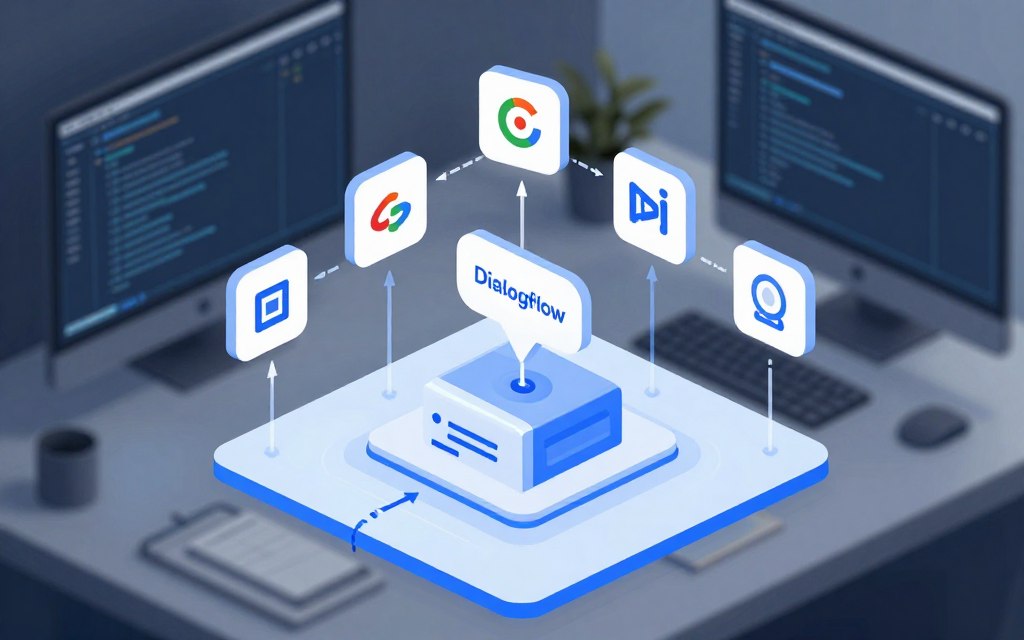
In Dialogflow, fulfilment means your agent calls an external service for a response. It’s like a waiter in a restaurant. The waiter takes the order but doesn’t cook it. Instead, they send it to the kitchen and bring back the finished dish.
This service is called a webhook. It’s a URL that Dialogflow sends requests to. Your code at this URL processes the request and returns a JSON response.
Setting Up a Webhook Service
To use fulfilment, you need a server that Dialogflow can reach. This means hosting your logic on a server. You have many hosting options, each with its own benefits.
| Service | Best For | Key Consideration | Setup Complexity |
|---|---|---|---|
| Cloud Functions for Firebase | Serverless, tight Google integration | Automatic scaling, pay-per-use | Low |
| AWS Lambda | High-scale, existing AWS users | Strong ecosystem, can be cost-effective | Medium |
| Heroku | Rapid prototyping, traditional app hosting | Simplified deployment, managed containers | Low to Medium |
| NGROK (for testing) | Local development | Exposes local server with a public URL temporarily | Very Low |
Introduction to Cloud Functions for Firebase
Cloud Functions for Firebase is great for beginners and Google users. It’s serverless, so you don’t need to manage servers. This makes it easy to start your fulfilment webhook.
Enabling Fulfilment for an Intent
First, make sure your webhook service is live and has a public URL. Then, connect it in the Dialogflow console.
- Navigate to the Fulfilment page in your agent’s settings.
- Toggle the Webhook option to “Enabled”.
- Paste your webhook URL into the provided field.
- Save the changes.
- Now, edit any intent where you want dynamic responses. Scroll to the bottom of the intent editor and toggle Enable webhook call for this intent.
After this, whenever a user triggers that intent, Dialogflow will send the conversation data to your webhook URL for processing.
Basic Webhook Code Example
Here’s a simple Node.js example using Express. It shows how a fulfilment webhook works.
const express = require('express');
const app = express();
app.use(express.json()); // To parse JSON request bodies

app.post('/webhook', (req, res) => {
// 1. Extract data from the Dialogflow webhook request
const intentName = req.body.queryResult.intent.displayName;
const parameters = req.body.queryResult.parameters;

// 2. Your custom logic goes here (e.g., call a database, API)
let fulfilmentText = `You triggered the intent: ${intentName}.`;
if (parameters.city) {
fulfilmentText += ` I see you asked about ${parameters.city}.`;
}

// 3. Construct the response JSON that Dialogflow expects
const responseObj = {
fulfillmentMessages: [{
text: {
text: [fulfilmentText]
}
}]
};

// 4. Send the response back to Dialogflow
res.json(responseObj);
});

const port = process.env.PORT || 3000;
app.listen(port, () => {
console.log(`Webhook listening on port ${port}`);
});
For more complex integrations, use the @google-cloud/dialogflow package. This lets you handle requests and generate responses in your Node.js environment.
Step 5: Designing Natural Conversation Flows
A good chatbot doesn’t just answer questions. It guides users through a smooth, multi-step dialogue. This makes the conversation feel natural and easy to follow. Your aim is to create a logical conversational flow that meets user needs and manages the dialogue’s state.
Managing Multiple Turns with Follow-up Intents
Real conversations don’t stop after one question. In Dialogflow ES, Follow-up Intents handle multi-turn dialogues. These intents are triggered by expected user responses after a parent intent.
For example, after asking “What’s the weather?”, a follow-up intent might capture “In London”. Dialogflow CX uses Pages and State Handlers to model this concept more powerfully. Each page is a distinct state in the conversation, with routes guiding transitions.
- Intent Routes (blue lines) change based on user input.
- Condition Routes (orange lines) change based on session parameters or other conditions.
This approach allows for complex, branching flows. The bot remembers context and asks for clarification. Designing this structure is essential for a smooth conversational flow.
Handling User Confirmation and Denial
Your chatbot must handle yes and no answers well. A simple “yes” or “no” can lead to different paths.
In Dialogflow ES, create separate intents for yes and no answers. Use input contexts to link them to the original query. In CX, use conditional routes on a page. For example, after asking “Shall I book this appointment?”, a condition route checks if the parameter `confirmation` equals “yes” to proceed, or “no” to offer alternatives.
Always provide clear options in your bot’s prompts. Instead of “Is that okay?”, ask “Shall I proceed? Please say yes or no.” This helps guide the user and improves intent matching, keeping the dialogue moving.
Creating a Fallback Strategy
No chatbot understands everything. A good fallback strategy ensures users never get stuck. Dialogflow has a Default Fallback Intent for queries it can’t match.
Customise this intent’s responses to manage user expectations politely. A good response might be, “I’m sorry, I didn’t quite understand that. Could you rephrase your question, or ask about [specific topic]?”
Log these misunderstood queries for later analysis. This helps identify gaps in your training phrases and create new intents. This turns failures into valuable training data, improving your bot’s understanding and the overall conversational flow.
In Dialogflow CX, you can design specific fallback pages with custom prompts. You can even direct users to a human agent. A thoughtful fallback is not a failure but a key part of user-friendly design.
Step 6: Testing and Debugging Your Chatbot
Quality assurance makes your Dialogflow agent reliable and smart. You need to test and refine your chatbot’s responses before it goes live. Using Dialogflow’s tools for thorough testing is key for a top-notch chatbot.
Using the Dialogflow Simulator
The Dialogflow simulator is your main testing spot, right in the console. It lets you chat with your agent live, just like real users would.
Just type something into the simulator’s box. You’ll see which intent was matched, the details it found, and the response it gave. This quick feedback helps spot any gaps in your intent design.
Try different ways of saying things, like using slang or leaving out words. See if your ‘Order Pizza’ intent catches both “I’d like a large pepperoni pizza” and “get me a large pep”. The simulator also shows how sure the NLP model is about each match.
In Dialogflow CX, you can test from a specific flow or page. This is important for complex, multi-turn chats. Always test the whole conversation path, not just single intents.
Analysing Conversation Logs
The simulator is for controlled tests, but logs show how your agent does with real or varied input. Go to the ‘History’ or ‘Training’ section to see past chats.
Each log entry shows the user’s question, the matched intent, and the agent’s action. Look at entries where the confidence score was low or the wrong intent was matched. These are your biggest chances to improve.
Key metrics to analyse include:
- Intent detection accuracy across different query types.
- Parameter extraction success rates.
- Common fallback triggers, indicating user needs you haven’t covered.
This historical data is vital for understanding how your chatbot is used in real life. It helps you find and fix weaknesses in its natural language understanding.
Improving Intent Recognition with Training
Dialogflow’s model gets better with manual training. The ‘Training’ section lists conversations where you can approve or correct the agent’s decisions.
If you find a mismatched intent, you can pick the right one. This teaches the model, making it better at matching similar queries in the future. Adding new training phrases from these corrected examples to your intents is a good practice.
Regularly check and correct these logs, after launching new features or seeing a drop in performance. This ongoing process helps your chatbot become more flexible and understanding.
Common Issues and Solutions
Even with careful planning, you’ll face common problems. Here’s a handy troubleshooting guide.
| Common Issue | Likely Cause | Recommended Solution |
|---|---|---|
| Low confidence scores for correct intents | Insufficient or unvaried training phrases. | Add more example phrases (10-20 per intent), including slang, abbreviations, and common typos. |
| Intent incorrectly triggered | Overlapping training phrases between intents. | Review and differentiate phrases. Use intent priorities or input contexts to separate similar queries. |
| Parameters not extracted | Entity annotations missing or incorrect in training phrases. | Re-annotate your training phrases, ensuring all relevant data is highlighted as a parameter. |
| Webhook fulfilment errors | Timeout, incorrect payload format, or service unavailability. | Check the ‘Fulfilment’ status in logs. Test your webhook endpoint independently and verify the response JSON matches Dialogflow’s expectations. |
Keep debugging with these tools to make your chatbot more reliable. Don’t move to integration until you’re happy with its performance in testing.
Step 7: Deploying and Integrating Your Chatbot
The true value of your chatbot is realised when it’s integrated into platforms where your users are. This final step moves your Dialogflow agent from testing to live production. It connects to websites, messaging apps, and voice assistants.
Choosing the right channels and following a clear process is key for successful deployment. Dialogflow offers several integration options to make this easy.
Integration Options: Websites, Messaging Platforms, and More
Dialogflow supports many channels. Your choice depends on where your audience spends their time. The main categories are web widgets, social and messaging apps, and voice assistants.
Each channel has its own setup process in the Dialogflow console under ‘Integrations’. You don’t need to rebuild your agent for each one. The same intents and entities power conversations across all platforms.
A well-integrated chatbot acts as a unified front door to your services, regardless of how the user arrives.
The following table compares the key characteristics of the major integration channels:
| Integration Channel | Best For | Setup Complexity | User Interaction Mode |
|---|---|---|---|
| Dialogflow Messenger (Web Widget) | Company websites, customer support portals | Low (Copy-paste code) | Text-based chat |
| Facebook Messenger | Social media marketing, brand engagement | Medium (Requires app configuration) | Text-based chat |
| Google Assistant | Voice commands, smart home devices | Medium (Linking projects required) | Primarily voice, also text |
| Custom API/Webhook | Mobile apps, proprietary software, IoT devices | High (Requires backend development) | Defined by the application |
Embedding on a Website with the Integration Client
Adding a chat widget to your website is quick. Dialogflow offers the ‘Dialogflow Messenger’ for this. It creates a floating chat button that expands into a conversation window.
To set it up, go to Integrations in your agent’s console and enable ‘Dialogflow Messenger’. You can customise the widget’s colour, title, and icon. Once configured, Dialogflow generates a snippet of HTML code.
You simply copy this code and paste it into the <body> section of your website’s HTML, just before the closing </body> tag. The widget will then appear on every page where the code is placed.
- This method requires no server-side coding from you.
- The chat is served securely via Google’s infrastructure.
- You can style the widget to match your site’s branding.
Connecting to Google Assistant or Facebook Messenger
For platforms like Google Assistant and Facebook Messenger, the integration process involves linking your Dialogflow agent to an external developer project.
Google Assistant: Your Dialogflow agent is inherently compatible. You must ensure your Google Cloud project is linked to an Actions on Google project. This allows users to invoke your chatbot through voice on smart speakers, displays, or phones.
Facebook Messenger: This requires creating a Facebook App and Page. You then configure the Messenger product within the app, providing the Page Access Token and Webhook URL that Dialogflow supplies. This connection routes messages from your Facebook Page to your chatbot.
For both platforms, the detailed steps are guided within the Dialogflow Integrations panel. The process verifies ownership and sets up secure communication between the services.
Best Practises for Maintenance and Updates
Launching your chatbot is not the end. Continuous improvement is essential for long-term success. A maintained chatbot stays accurate, helpful, and relevant.
Establish a routine to review conversation logs in the Dialogflow history section. Look for user phrases that triggered the wrong intent or fell into the default fallback. Add these as new training phrases to the correct intent.
- Schedule Regular Audits: Monthly reviews of analytics and logs can reveal usage patterns and common points of failure.
- Expand Training Data: Continuously add new user expressions to your intents to improve the agent’s natural language understanding.
- Update Content Proactively: If your business adds a new service or changes a policy, immediately update the relevant intents and entities.
- Monitor Fulfilment Performance: If using webhooks, ensure your server is reliable and responses are fast to keep conversations flowing smoothly.
By following these practises, your chatbot will evolve with your users’ needs, ensuring it remains a valuable asset.
Conclusion
This guide has shown you how to create a chatbot with Google Dialogflow. You started with the basics like agents, intents, and entities. Then, you moved on to setting up, defining conversations, and adding dynamic responses.
You now have a virtual agent that can understand and answer user questions. This agent can change how we handle customer service and support. It can also give instant information. Dialogflow’s strength is in making conversations seem natural and smart.
But your work doesn’t stop here. Think of this bot as a starting point. Look into advanced Dialogflow features like knowledge connectors or sentiment analysis. It’s also important to keep training and checking your chatbot to make sure it works well.
When you’re ready for a live version, you’ll need to make more changes and write better code. This guide is a good start, but platforms like Sendbird offer other AI chatbot options. Keep improving your virtual agent to make it more useful and valuable.
FAQ
What is the main difference between Google Dialogflow ES and CX?
Dialogflow ES is for simple chatbots. It’s easy to use and great for beginners. Dialogflow CX is for more complex chatbots. It has a visual builder and is better for large projects.
Do I need to be a programmer to build a chatbot with Dialogflow?
You don’t need to be a programmer for simple chatbots. You can use the Dialogflow console to create them. But for more complex chatbots, you’ll need to know how to code.
How much does it cost to use Google Dialogflow?
Dialogflow has a free tier for beginners. It’s perfect for testing and small projects. For bigger chatbots, you pay for each request.
What is an ‘entity’ and why is it important?
Entities help your chatbot understand specific information. For example, it can find the size of a pizza. This makes your chatbot more useful for tasks like ordering.
Can I connect my Dialogflow chatbot to my website?
Yes, you can. Dialogflow has a chat widget you can add to your site. This lets visitors talk to your chatbot without leaving your page.
What is ‘fulfilment’ and when should I use it?
Fulfilment lets your chatbot give dynamic answers. Use it for tasks like checking orders or booking appointments. For simple answers, you don’t need it.
How do I handle questions my chatbot doesn’t understand?
Use a fallback strategy. Dialogflow has a built-in intent for when it doesn’t understand. You can also log these to improve your bot.
How can I test my chatbot before making it live?
Dialogflow has a simulator for testing. You can try different questions and see how your chatbot responds. It’s a great way to test before going live.
What are some common use cases for a Dialogflow chatbot?
Dialogflow is used in many ways. It can answer customer service questions, help with online shopping, or even book appointments. It’s great for many industries.
Is the data used to train my Dialogflow chatbot secure?
Yes, Google Cloud is very secure. Your data is safe in your Google Cloud Project. You control who can access it with Google Cloud’s IAM.


 By
By